Knowledge Base Document
In the Edit Knowledge Base panel, user can also view the knowledge base's uploaded documents.
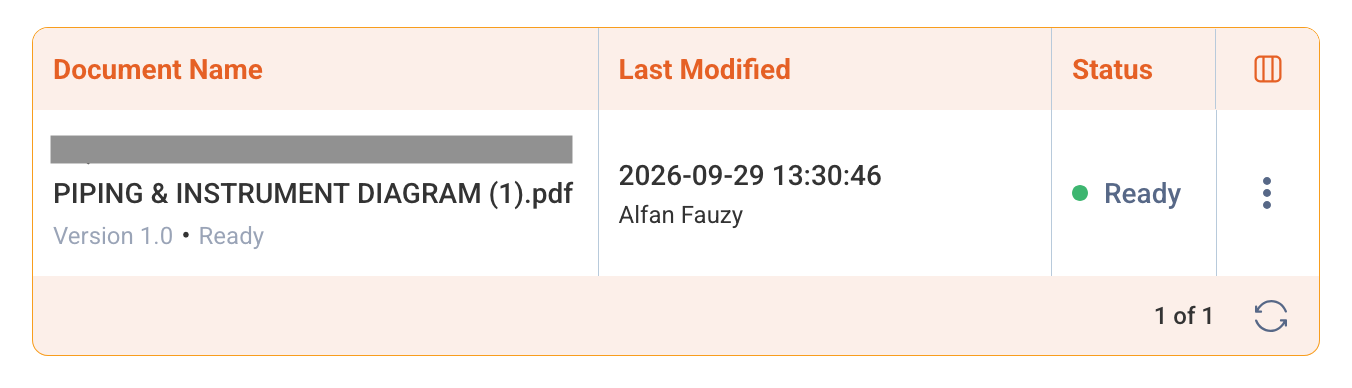
The table listing shows the document's name, version, last modified by, and status.
User can also view Master List, Content Review, Update Document, Update Version, Version History, and Delete the document.
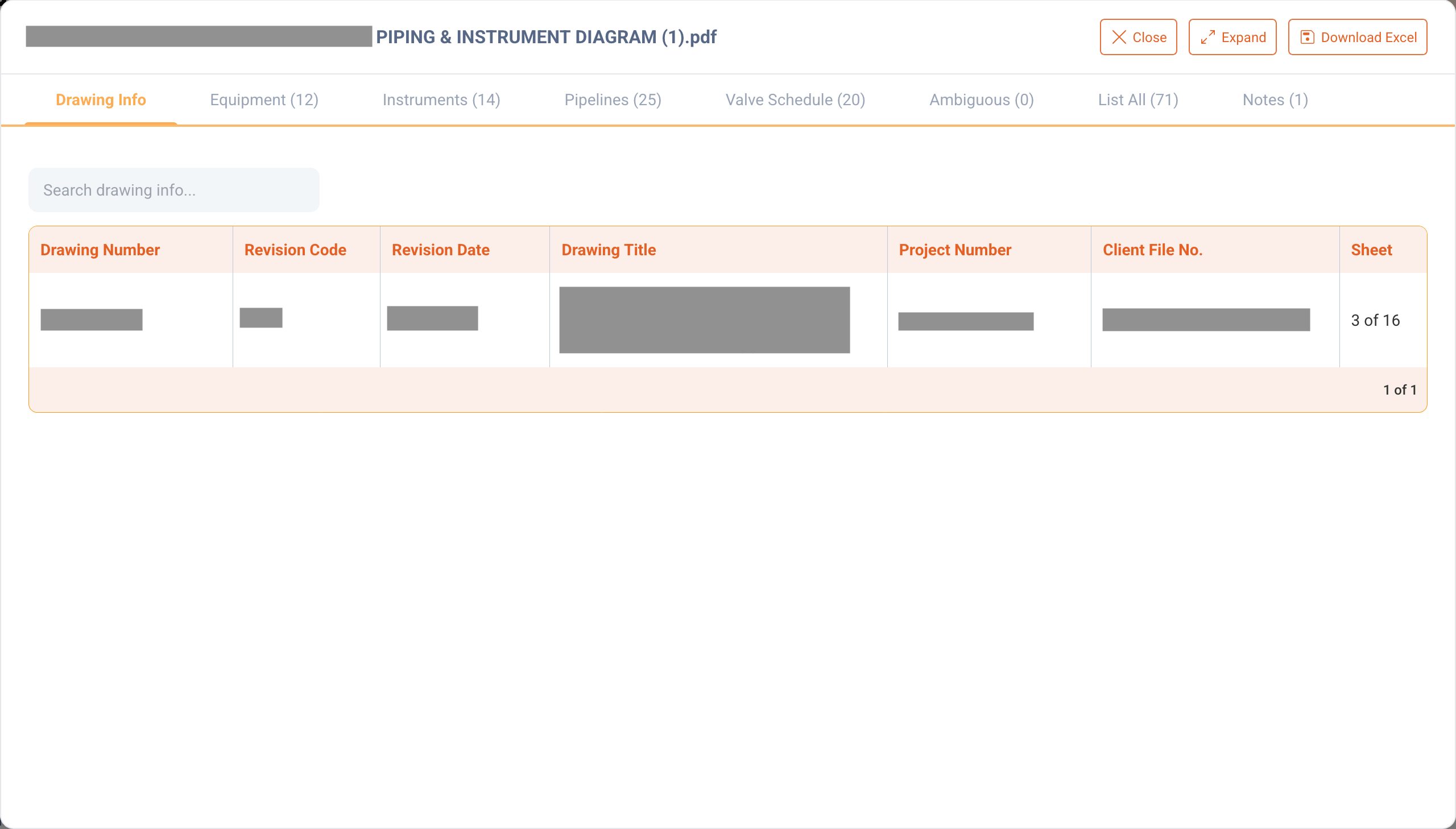
Master List
User can view the Master List of the document only if the document is IEP.
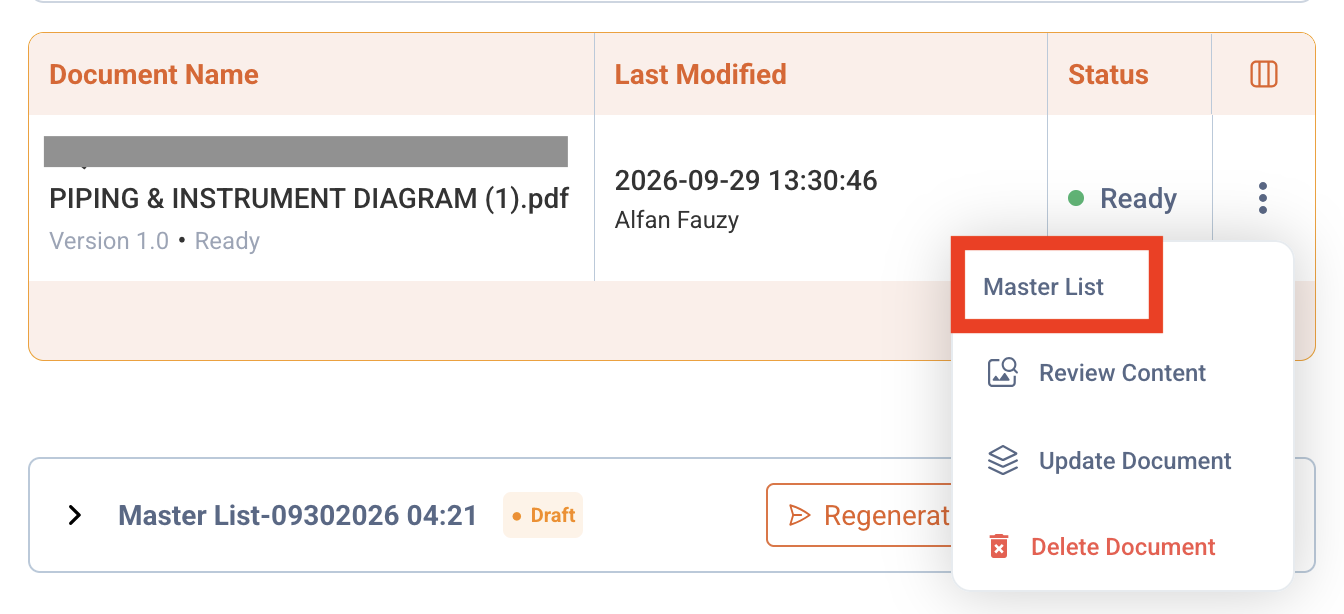
To view a document's Master List:
- click the three dots icon on the table listing
- choose Master List on the dropdown menu
Content Review
User can review the content and nodes of the related document in this page.
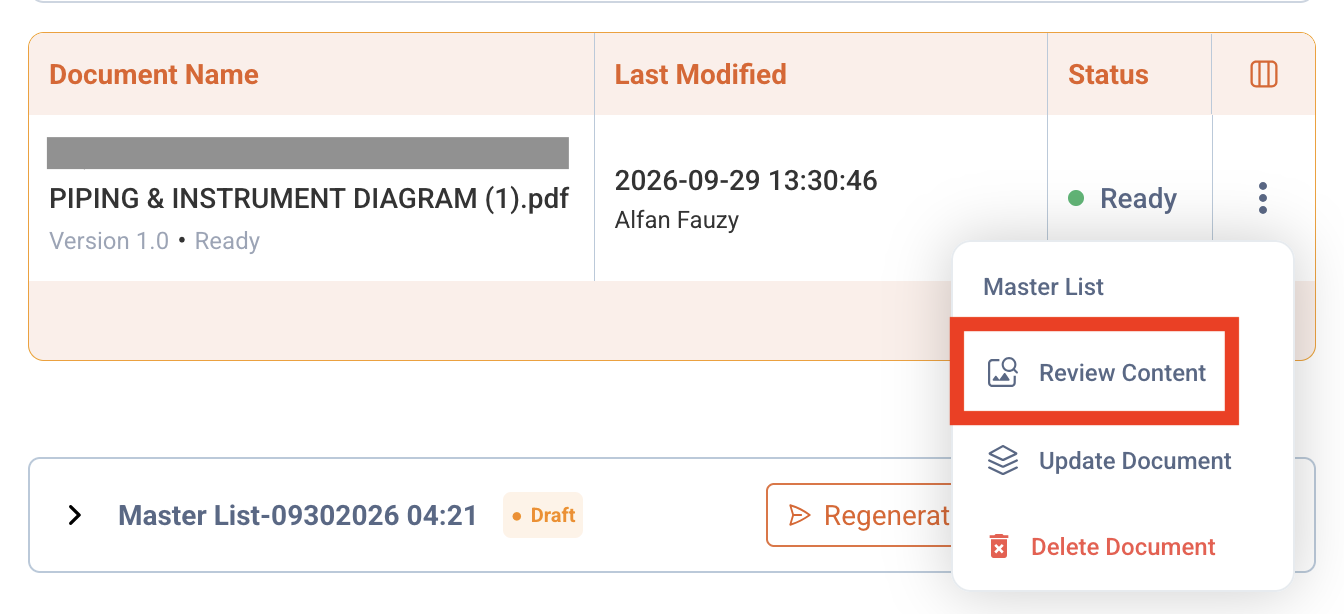
To review a document's content:
- click the three dots icon on the table listing
- choose Content Review on the dropdown menu
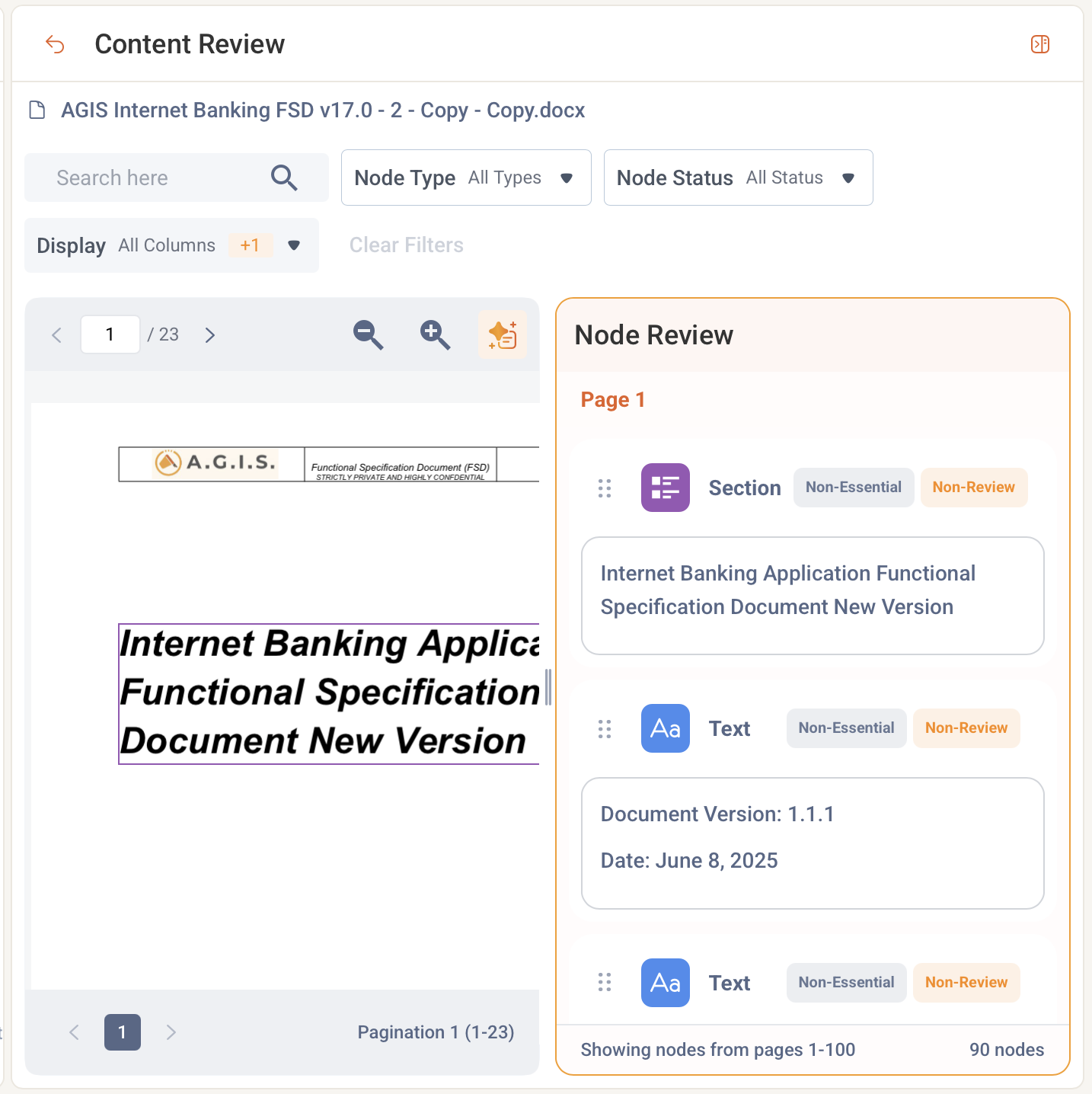
- User can review a specific node, marking them as
essential, alreadyreviewed, or change the order of the nodes.
Update Document
User can update the document to it's latest version by uploading a new file.
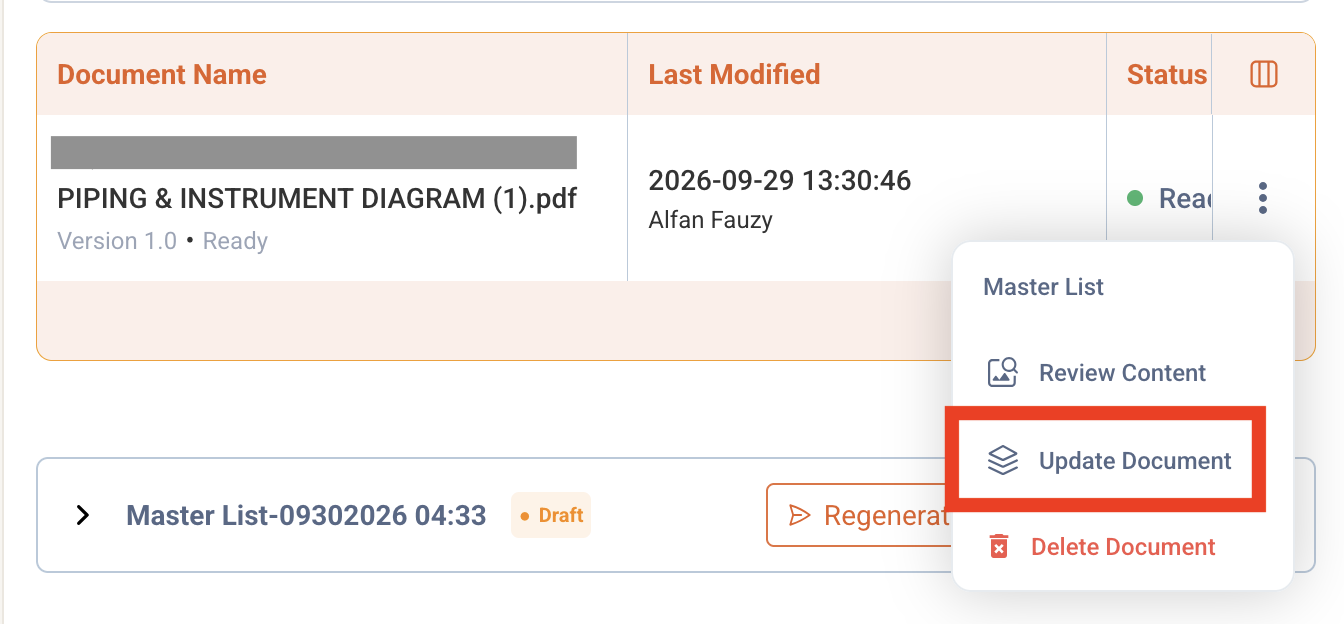
To update a document:
- click the three dots icon on the table listing
- choose Update Document on the dropdown menu
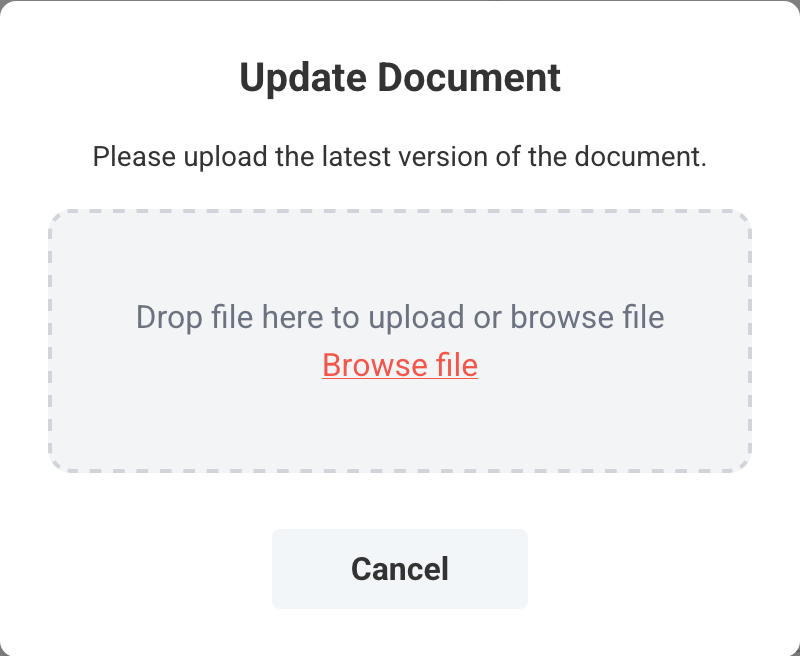
- Upload the document.
Update Version
Updating the version is only possible on documents that has already done Update Document.
User can update/change the document's version based on the document's file.
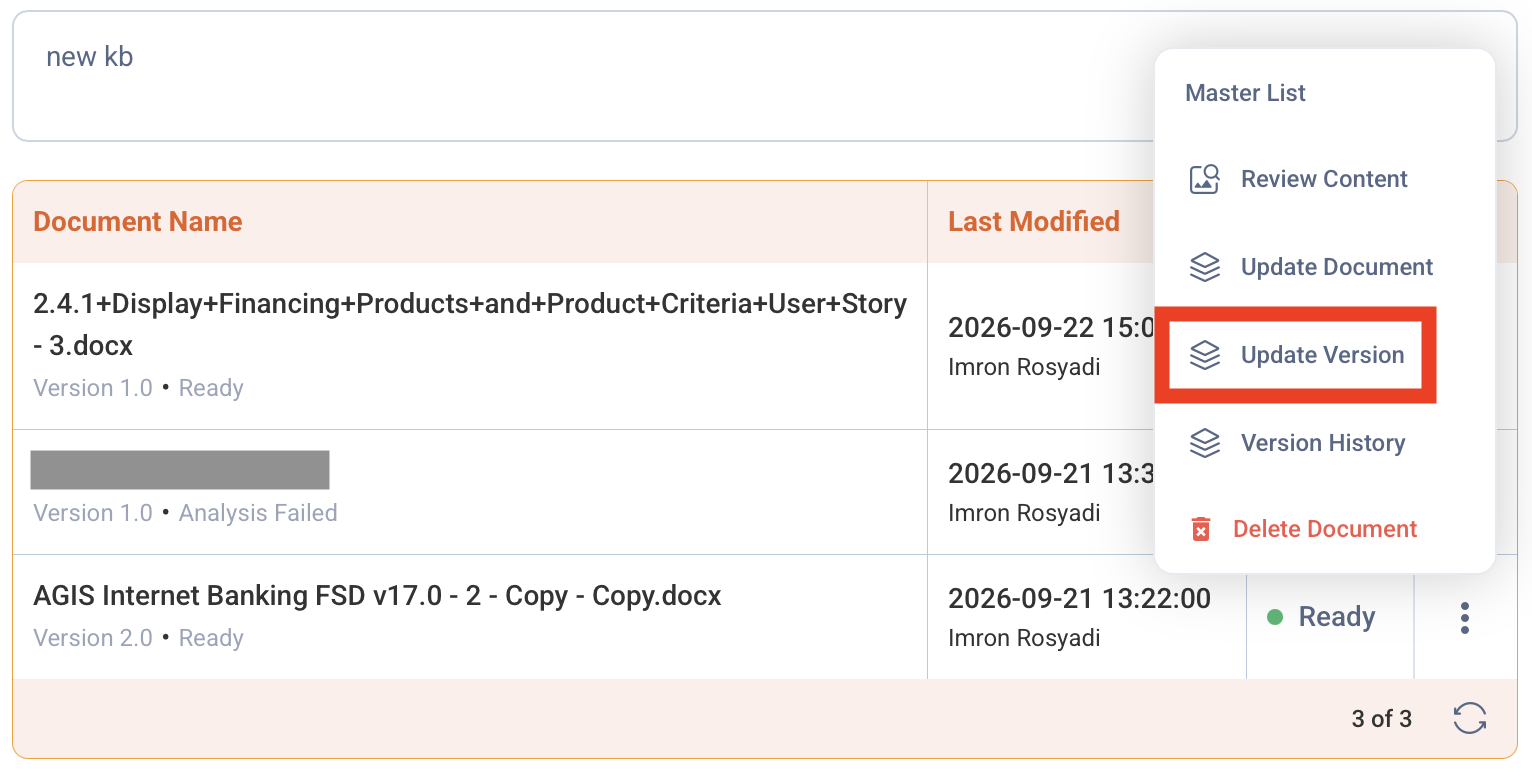
To update a document:
- click the three dots icon on the table listing
- choose Update Version on the dropdown menu
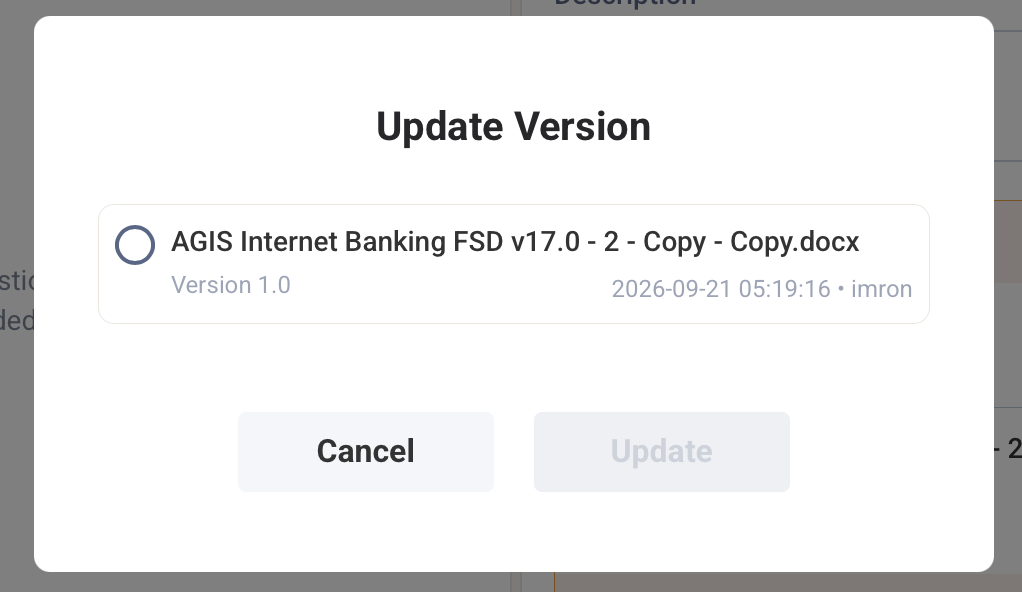
- Pick the file or version that you want.
Version History
Viewing the Version History is only possible on documents that has already done Update Document.
User can view the changes between version of the document on this page
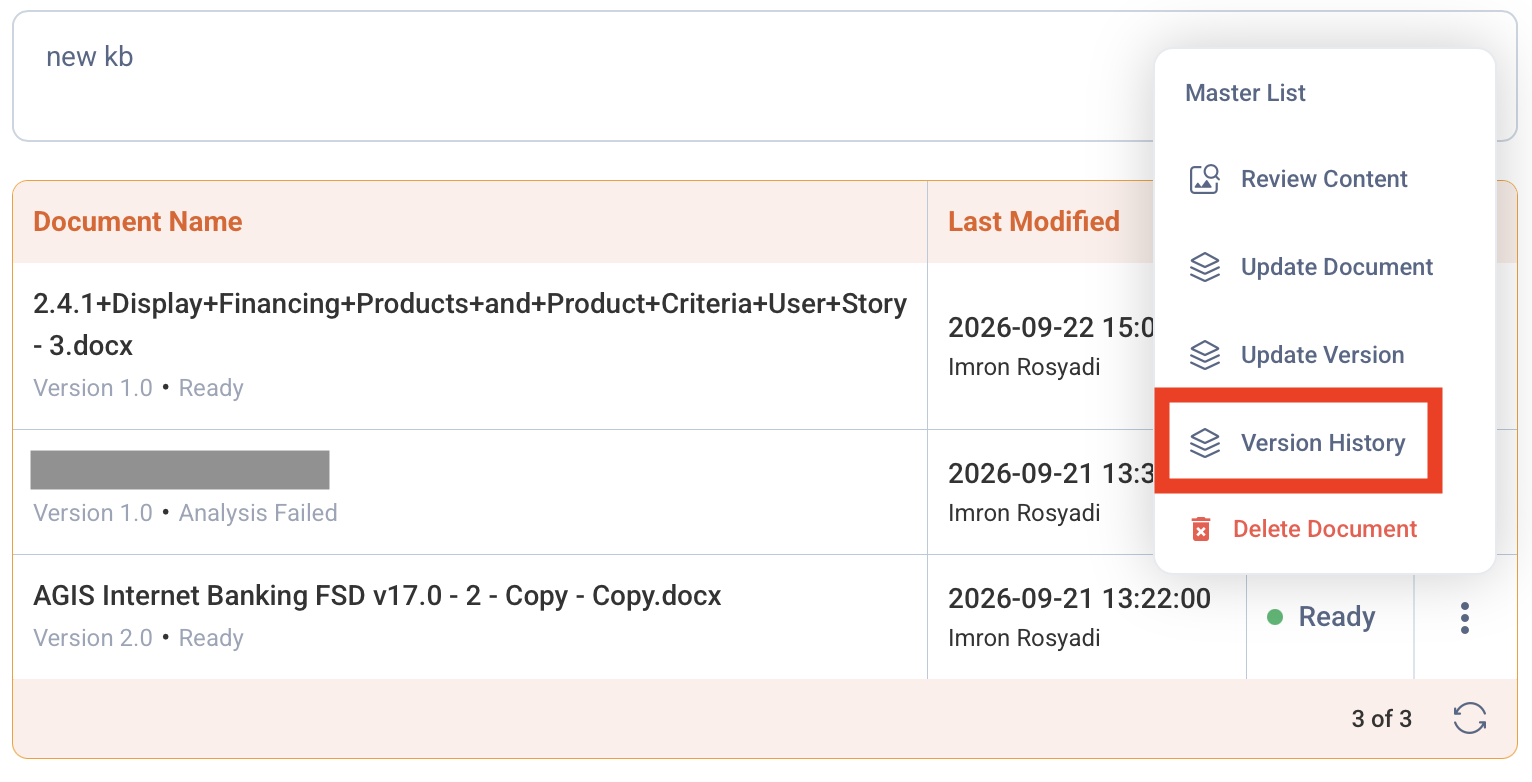
To update a document:
- click the three dots icon on the table listing
- choose Version History on the dropdown menu
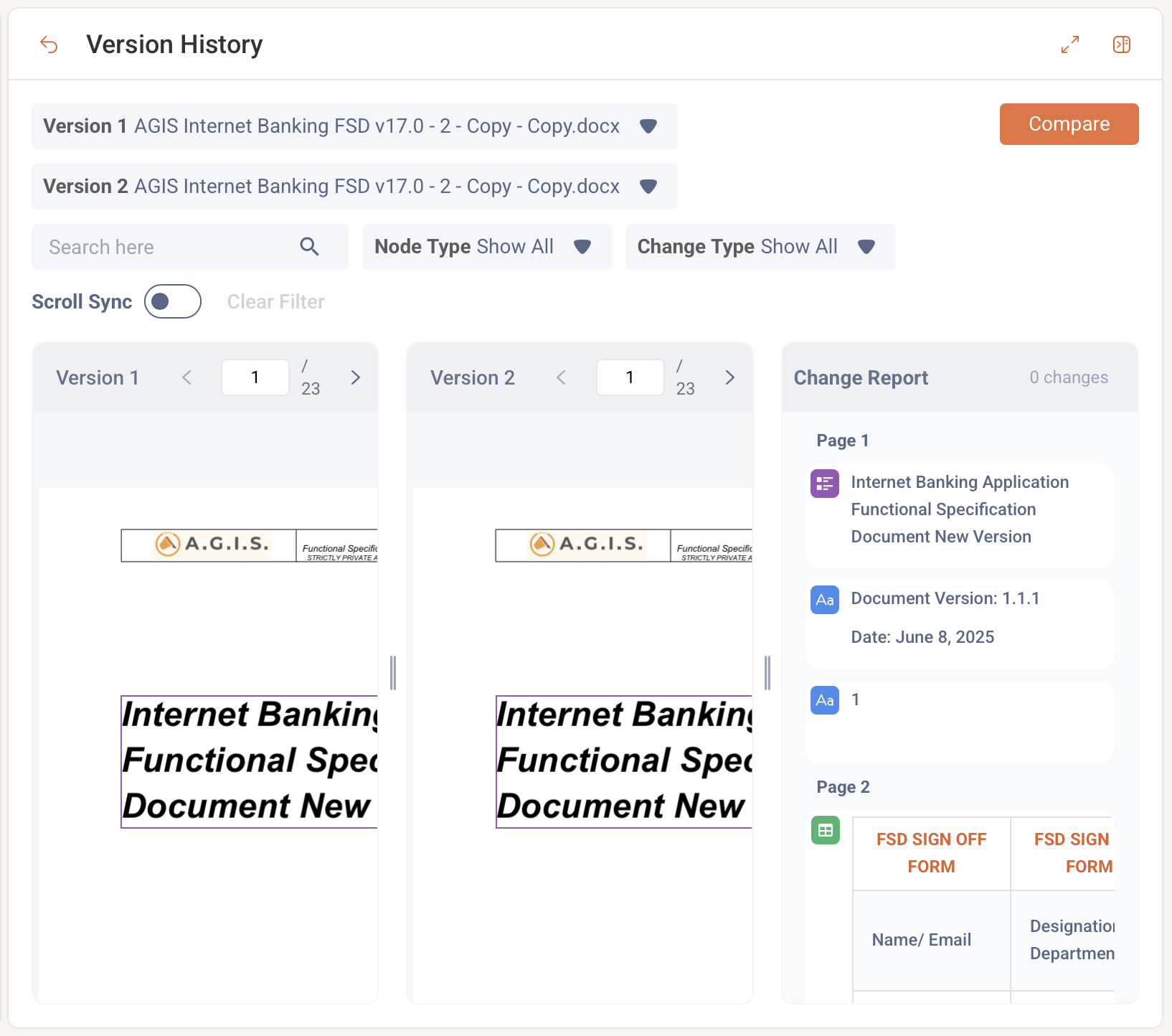
- Compare the changes.
